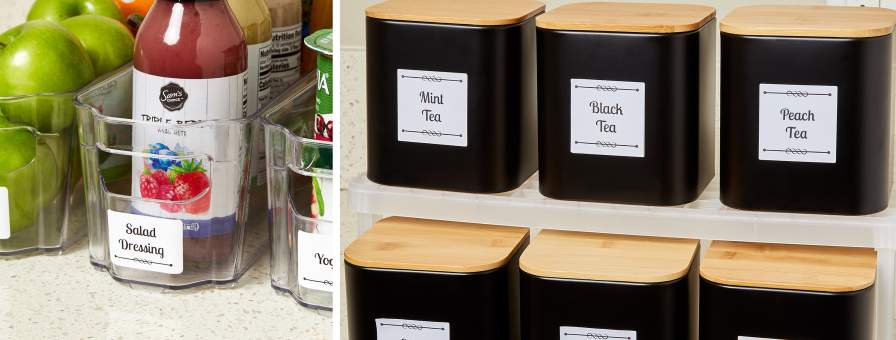
Are you looking to add a personal touch to your projects with eye-catching labels? Creating a decorative label in Open Office is easier than you think.
Whether you want to organize your home, design unique gift tags, or add flair to your products, this guide will show you step-by-step how to make labels that stand out. By the end, you’ll have the skills to create beautiful, professional-looking labels that grab attention and make your items truly special.
Ready to transform your ideas into stunning labels? Let’s dive in!
Setting Up Your Document
Setting up your document correctly is the foundation for creating a decorative label in Open Office. It ensures your design fits perfectly and prints without issues. Taking a few moments here will save you time and frustration later on.
Choosing The Label Template
Open Office offers a variety of label templates that match common label sheets available in stores. Start by selecting the template that matches your label size and layout.
To find the right one, go to File > New > Labels. Here, you can browse through different brands and label types. Don’t rush this step—picking the wrong template can cause your labels to misalign.
Think about the purpose of your label. Are you making address labels, product tags, or decorative stickers? The template you choose should complement your design and the label’s function.
Adjusting Page Settings
After selecting your template, check the page settings carefully. Make sure the paper size matches the label sheet you will use. Incorrect paper size leads to printing errors or wasted labels.
Look at the margins and orientation next. Labels often require a specific page orientation—portrait or landscape—to print correctly. Adjusting margins ensures your text and images stay within the label boundaries.
If you’ve ever printed a label only to find it shifted or cut off, you know how important this step is. Take a moment to print a test page on plain paper to verify alignment before using your actual label sheets.

Credit: www.youtube.com
Designing The Label
Designing your label in Open Office is where your creativity truly shines. This stage lets you shape how your label will look and feel, making it unique and eye-catching. Whether you want a simple tag or a vibrant sticker, the design choices you make will set the tone for your project.
Adding Text Elements
Start by adding the main text to your label. Click on the Text Box tool and draw a box where you want your text to appear. Keep your message clear and concise to ensure it stands out.
Think about the hierarchy of information. Which part should grab attention first? You might want a bold title with smaller details underneath. This guides the reader naturally through your label.
Inserting Images And Icons
Images can add personality and context to your label. Use the Insert menu to add pictures or icons that relate to your product or theme. Simple icons work well to highlight key points without overwhelming the design.
Make sure your images are high quality and properly sized. Too large, and they can clutter your label; too small, and they might lose impact. Adjust placement carefully to keep the layout balanced.
Applying Fonts And Colors
Choosing the right fonts can transform your label’s appeal. Stick to one or two fonts to maintain clarity and professionalism. Try mixing a bold font for headings with a simple one for body text.
Colors set the mood and attract attention. Use your brand colors or pick shades that complement your images and text. Don’t be afraid to experiment with contrast to make important elements pop.
Using Shapes And Borders
Shapes and borders help make labels look neat and eye-catching. Using Open Office, you can draw shapes and add borders to create a decorative frame. This adds style and clearly separates the label from the rest of the page.
Creating a decorative label in Open Office is an exciting way to add a personal touch to your projects. Using shapes and borders can transform a plain label into a striking piece of art. You don’t need to be a design expert; with a few simple techniques, you can craft labels that capture attention and convey your message effectively. Let’s dive into the essentials of drawing custom shapes and styling borders and lines.Drawing Custom Shapes
Open Office offers a versatile range of drawing tools that allow you to create custom shapes effortlessly. Start by selecting the ‘Drawing’ toolbar, which provides access to a variety of shapes like rectangles, circles, and polygons. Experiment with different shapes to find what complements your label design. You might find that a simple oval or a complex star shape perfectly fits the theme you’re aiming for. Adjust the size and rotation to create unique patterns. Are you looking for something truly unique? Try combining multiple shapes to create a new design. Overlapping shapes can create depth and interest, making your label stand out.Styling Borders And Lines
Once your shapes are in place, it’s time to enhance them with borders and lines. Borders can define your label’s edges, adding a polished look. Select the shape, and navigate to the ‘Line Style’ options to choose from solid, dashed, or dotted lines. Consider the color of your borders. A contrasting color can make your label pop, while a subtle shade can blend seamlessly with the rest of your design. Think about the thickness of your lines. Thicker lines can create a bold statement, while thinner lines offer a more delicate touch. Experiment to see what suits your label best. Have you ever thought about using borders creatively? Try adding a decorative border to just one side of your label for an unexpected twist. This can draw attention to specific areas and make your label more dynamic. By using shapes and borders strategically, you can create labels that not only serve their purpose but also engage the viewer visually. What shapes and styles will you experiment with?Aligning And Arranging Elements
Aligning and arranging elements is key to making your decorative label look professional and polished. Without proper alignment, your design can feel chaotic or unbalanced. Paying close attention to how objects line up and layer will save you time and improve the overall impact of your label.
Using Grid And Snap Tools
Open Office offers grid and snap tools that help you place objects precisely. Turning on the grid displays a series of intersecting lines on your workspace, acting like invisible guides. This makes it easier to line up text boxes, images, and shapes evenly.
The snap feature makes objects automatically jump to the nearest grid line or guide when you move them. This prevents awkward spacing and keeps everything tidy. Have you tried adjusting the grid spacing? Smaller grid steps give you finer control, while larger ones speed up alignment.
Activate these tools by going to View > Grid and Snap. Experiment with snapping to grid, snapping to objects, or both. These options let you decide how strict the alignment should be.
Grouping And Layering Objects
Grouping is essential when you want to move several elements as one. Select multiple objects by holding the Shiftkey and clicking each item, then right-click and choose Group. This locks their relative positions, saving you from repositioning each element separately.
Layering controls which object appears on top when elements overlap. Use the Arrangemenu to send objects backward or bring them forward. Think about which parts of your label should stand out—text usually goes on top of images for readability.
Have you ever accidentally hidden a key part of your design behind another? Mastering layering prevents this frustration. Try toggling layers to see how your label changes visually. This simple action can completely transform your design’s clarity and appeal.
Previewing And Printing Labels
Previewing and printing labels in Open Office is a crucial step to ensure your design looks just right on paper. It helps you avoid wasting label sheets and saves you time by catching layout errors early. Before you hit print, it’s important to double-check how your labels will appear and adjust your printer settings accordingly.
Checking Print Layout
Open Office allows you to preview your labels exactly as they will print. Use the “Print Preview” option to see the alignment, spacing, and overall design. This step shows if any labels are cut off or misaligned, which can happen if margins aren’t set correctly.
Look closely at the spacing between labels. Are they evenly distributed? If not, adjust the label template or margins until everything fits perfectly. This saves you from the frustration of peeling off misprinted labels and starting over.
Setting Printer Options
Once you’re satisfied with the preview, it’s time to configure your printer settings. Choose the correct paper size and type—label sheets are thicker, so selecting a “labels” or “thick paper” option can improve print quality.
Don’t forget to check the print orientation and scale options. Printing at 100% scale avoids shrinking or stretching your labels, keeping your text and images sharp. Also, if your printer supports it, enable “high quality” mode for crisp results.
Have you ever wasted an entire sheet of labels because the printer defaulted to plain paper settings? Adjusting these printer options beforehand can prevent that costly mistake. Take a moment to test print on a regular sheet before using your label paper.

Credit: www.youtube.com
Saving And Reusing Label Designs
Saving and reusing label designs in Open Office saves time and effort. It lets you keep your work safe and use it again later without starting from scratch. This process helps maintain consistency across all your labels. You can easily update designs as needed and keep a library of templates ready for different projects.
Exporting Templates
After creating a label design, save it as a template. Go to File > Templates > Save. Choose a clear name and folder for easy access. Exporting templates means you can open the same design anytime. It also allows sharing your label designs with others. Templates keep your layout, fonts, and colors intact.
Editing Saved Labels
Open a saved label file to make changes quickly. Use File > Openand select your template. Edit text, colors, or images as needed. Save your changes without affecting the original template by choosing Save As. This keeps the original design safe. Editing saved labels helps customize designs for new projects easily.

Credit: www.avery.com
Frequently Asked Questions
How Do I Start Creating A Decorative Label In Open Office?
Open Open Office and select the ‘Labels’ option under the ‘File’ menu. Choose your label brand and type for accurate sizing. This sets up the document with the correct layout for your decorative label.
What Design Elements Enhance Open Office Labels?
Use colorful borders, custom fonts, and images to enhance your label design. Keep the layout balanced and text readable. Experiment with shapes and backgrounds to make your label visually appealing.
Can I Add Images To My Open Office Labels?
Yes, you can insert images by clicking ‘Insert’ then ‘Image’. Choose a file and resize it to fit your label. Images add a personal and decorative touch to your label design.
How To Print Decorative Labels Correctly From Open Office?
Use the correct label sheet size in printer settings. Print a test page on regular paper to check alignment. Adjust margins if needed before printing on actual label sheets for best results.
Conclusion
Creating decorative labels in Open Office is simple and fun. You can add colors, shapes, and text easily. This helps your labels look unique and neat. With practice, your designs will improve quickly. Try different styles to see what works best.
These labels can be used for gifts, organizing, or events. Open Office gives you all the tools you need. Start designing today and enjoy making your items stand out.